Windows Update Error 0x80070422 is a common problem that prevents your system from downloading or installing updates. This error usually occurs when the Windows Update Service (WUAUSERV) is disabled or blocked by third-party software.
In this article, you will learn how to fix Windows Update Error 0x80070422 step-by-step in Microsoft Windows 11 and Windows 10, and I will show you how to re-enable the services and get your updates back on track.
| Technical Feature | Details |
|---|---|
| Error Code | 0x80070422 |
| Root Cause | Disabled Windows Update Services |
| Platform | Windows 11, Windows 10, Windows 7 |
| Success Rate | 95% (via Service Management) |
1. Enable Windows Update Services Manually
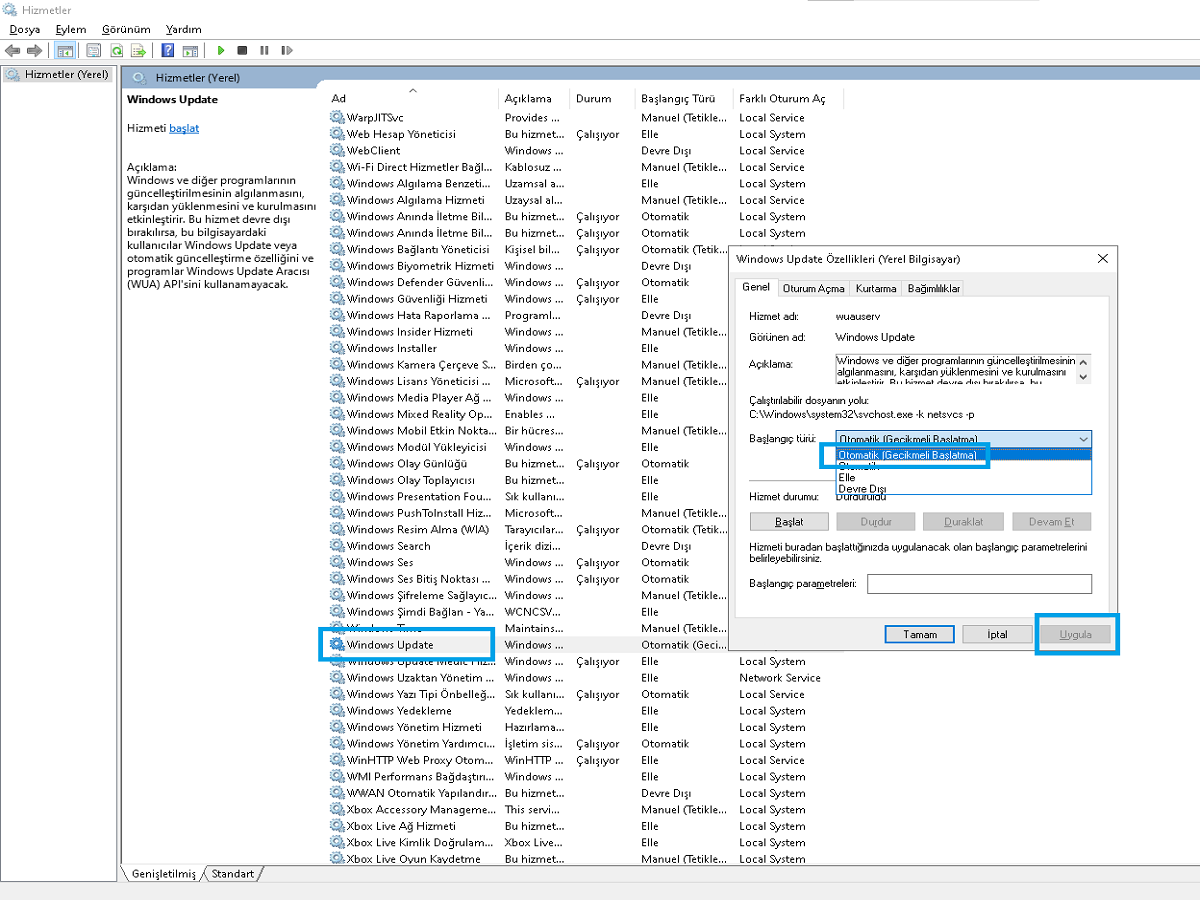
The primary reason for 0x80070422 is a disabled update service. Follow these steps:
Press Windows Key + R, type
"services.msc", in the window that appears, and press Enter.Find Windows Update in the list.
Right-click on it and select Properties.
Change the Startup type to Automatic.
Click Start, then Apply and OK.
Repeat these steps for the following services:
Background Intelligent Transfer Service (BITS)
Cryptographic Services
Network List Service
2. Use Command Prompt (CMD) to Reset Services
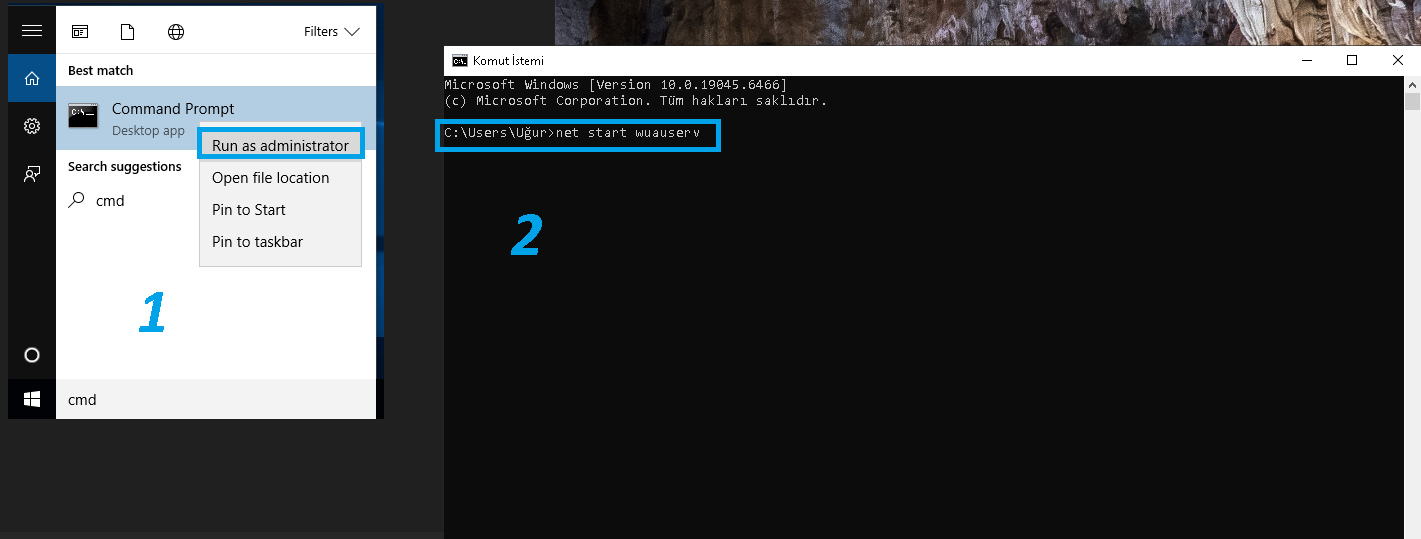
If the operation you performed in the Services window fails, you can force it to start via CMD (Command).
Type CMD in the search bar, right-click, and select “Run as administrator.”
Copy and paste the following commands one by one:
Note: Type each command individually and press Enter after each one.net start wuauservnet start bitsnet start cryptsvc
3. Disable IPv6 (The “Secret” Fix)
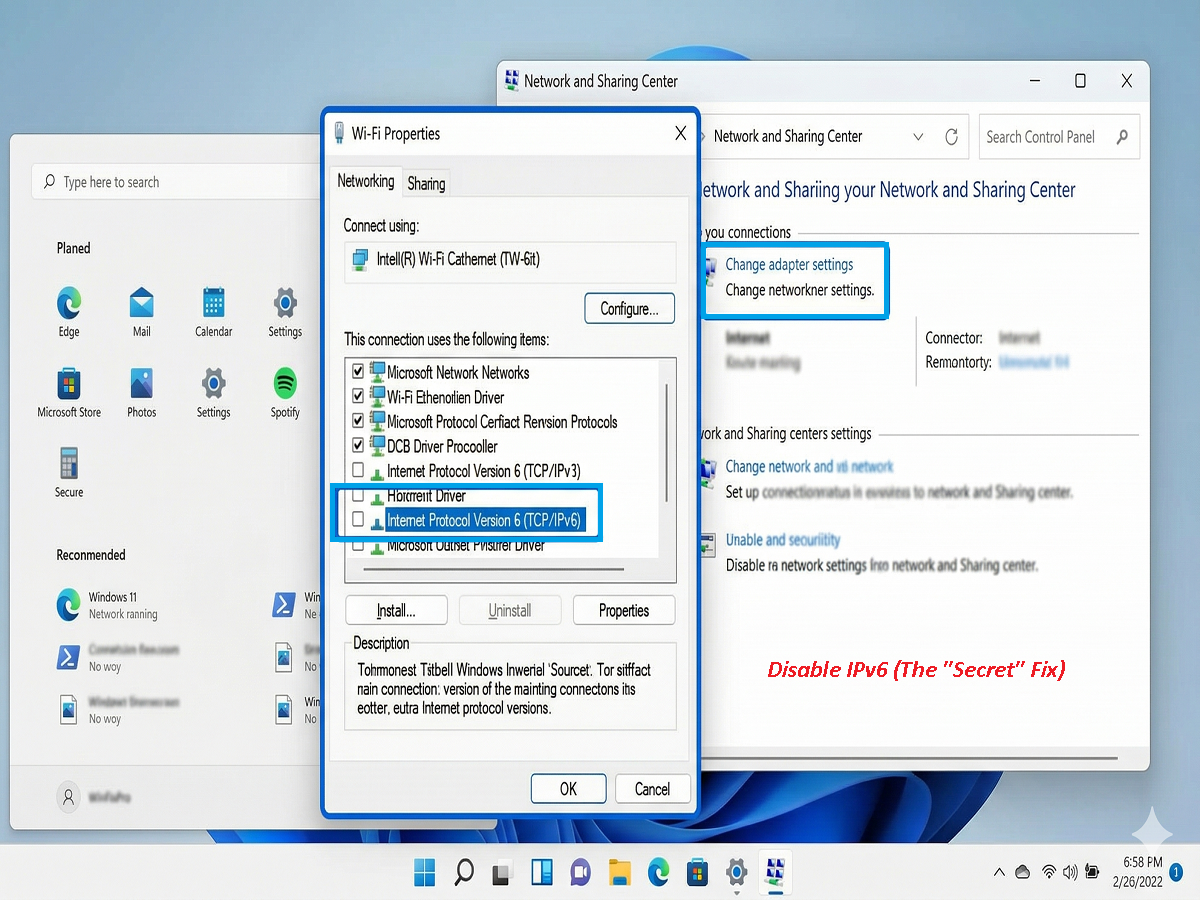
Sometimes Windows Update conflicts with IPv6 settings, causing the 0x80070422 error. To fix this, follow these steps:
- Go to Start > Control Panel > Network and Sharing Center.
- Click on Change connection settings.
- Right-click on your connection and select Properties.
- Uncheck Internet Protocol Version 6 (TCP/IPv6).
- Click OK and restart your computer.
4. Fixing the problem via the Windows Registry.
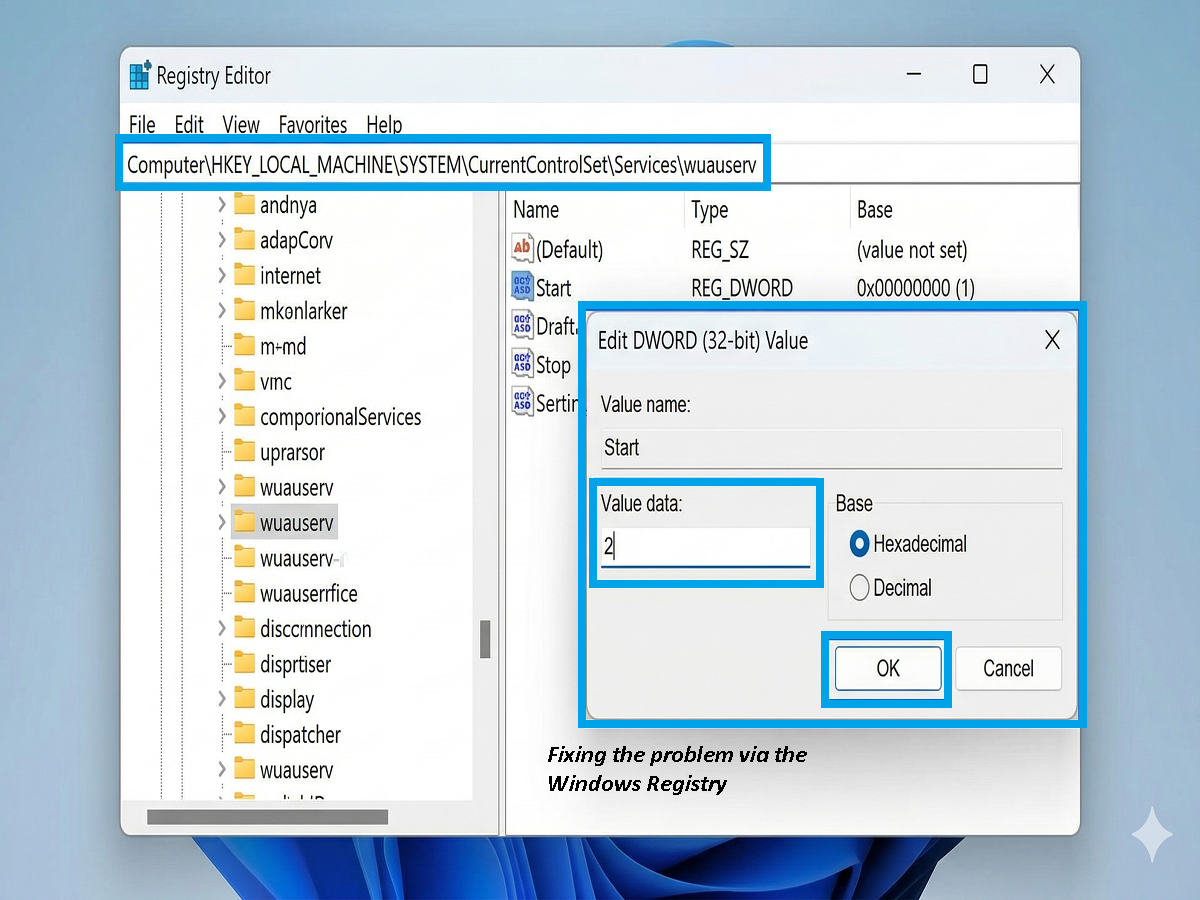
Another method involves checking the “Start” value in the registry. To do this, follow these steps:
- Press the Windows + R keys on your keyboard, type “regedit”, and press Enter.
- Go to: HKEY_LOCAL_MACHINE\SYSTEM\CurrentControlSet\Services\wuauserv
- Find the Start key on the right.
- Double-click on it and ensure that the Value data is set to 2 (Auto).
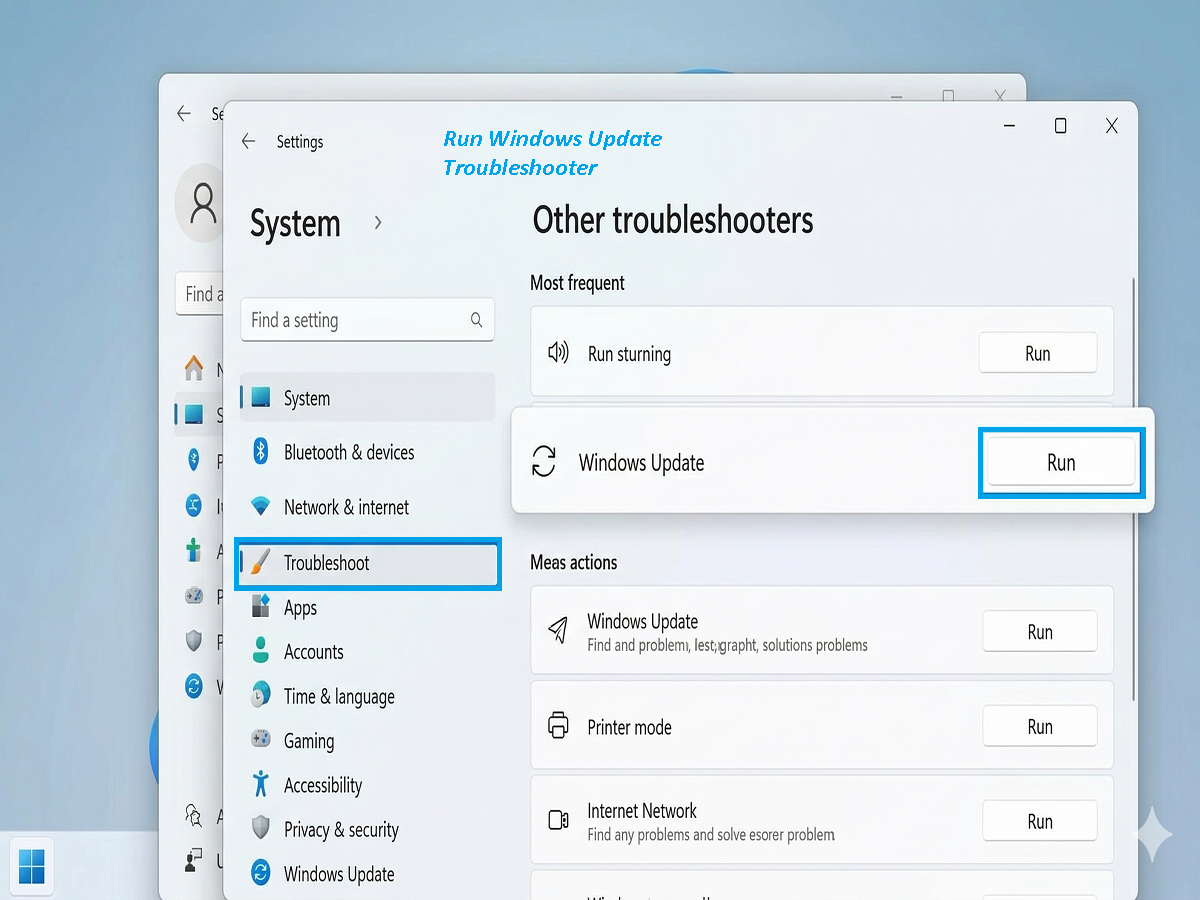
Fix 4: Run Windows Update Troubleshooter
If you continue to have problems on your Windows computer, try this method.
- Go to Settings
- Click System → Troubleshoot
- Select Other troubleshooters
- Run Windows Update Troubleshooter
Expert Tip: After completing these steps, always restart your PC. If the issue remains, it might be due to a corrupted system file. You can check the
Official Microsoft Guide for more details.
Conclusion
Fixing Windows Update Error 0x80070422 is usually as simple as restarting the correct services. By following the steps above, you should be able to download your security updates without issues.